ActionDirector - Video Editing
- 4.5
- Rating
- 10.00M
- Installs
- Free
- Price

 Analysis by App-foxy
If you want to turn phone clips into something watchable without learning a desktop editor first, ActionDirector is an appealing place to begin. I found it approachable as a mobile video editing app, but it is not simply a one-tap filter tool. It gives beginners a practical route from scattered camera footage to a shareable video, while still leaving room to make deliberate choices about trimming, pacing, sound, and presentation.
Developed by Cyberlink Corp, the app sits in the video players and editors category and is free to install. Its Everyone age rating makes it suitable for a broad audience, and it runs on devices using Android 6.0 or later. The current version is 7.12.5. I would describe it as a friendly editor for people who want more control than a social network’s built-in tools provide, but less complexity than a full computer-based production program.
The first thing I would tell a new user is to begin with a small, clear project. Do not import every clip from a holiday, birthday, school event, or weekend outing at once. Choose a handful of related shots and aim for a short result. That approach makes the interface easier to understand and gives you a meaningful success quickly, which matters more than discovering every option on the first day.
You May Also Like

 Blood Strike: 2.5 Anniversary
Blood Strike’s Loadouts Turn Every Drop Into a Tactical Gamble
A close look at Blood Strike’s custom loadouts: how fast access to signature weapons reshapes its battle royale rhythm, rewards preparation, and narrows the gap between fights.

 Pandora - Music & Podcasts
Pandora’s Music Is Easy to Start, but Harder to Recover
Pandora’s strength is its low-effort path from a seed to a station. Its weak spot is how much confidence it asks you to place in connection, setup, and quiet recovery.

 8 Ball Pool
 Is Built on Rivalries, Rematches, and Routine
A close look at the rivalries, rematches, shared routines, and unanswered safety questions that turn a quick pool match into a persistent mobile community.

 Samsung Music
’s Quiet Strength Is Playing What You Already Own
Its reach comes less from spectacle than from dependable access to a personal library. That simplicity is both the app’s strongest retention engine and its ceiling.

 AccuWeather: Weather Radar
AccuWeather Review: A Quick, Clear Forecast for Everyday Decisions
For everyday plans, the best forecast is the one you can understand quickly. AccuWeather makes rain timing, radar, and local conditions easy to act on, with a few trade-offs.

 Hill Climb Racing
Why Hill Climb Racing Still Turns Crashes Into One More Run
A tiny car, a bumpy hill and one more upgrade: Hill Climb Racing keeps resurfacing because its simple chaos makes every near-miss feel personal.
More From Our News Desk



What the editing experience feels like
ActionDirector works best when I treat it as a guided timeline editor rather than as an automatic movie maker. The basic process is familiar: bring in footage, arrange it, remove weak moments, adjust the presentation, and export the finished piece. That structure is reassuring if you have used another editor, yet it remains understandable if your only previous experience is cutting clips inside a social app.
Its strongest audience is someone who wants to make a video that feels intentionally assembled. A family member might use it to combine short clips from a celebration, while a student could prepare a simple project with a clearer beginning and ending. It also makes sense for a small business owner who needs to clean up a product demonstration or assemble a quick behind-the-scenes sequence without opening a laptop.
I would not choose it automatically for every editing job. If your goal is only to trim a single clip and send it immediately, the phone’s gallery editor may be faster. Likewise, people who need a highly specialized professional workflow, extensive audio mixing, or precise desktop-style finishing may outgrow a mobile editor quickly. ActionDirector’s value is in the middle: it gives you a real editing workspace without demanding that you become a video technician.
The app has earned an average rating of 4.5 from around 175 thousand ratings, with more than five thousand written reviews and over ten million installs. Those figures suggest that it has reached a substantial audience, but I would still judge it by your workflow rather than popularity alone. A widely used editor can remain the wrong fit if you dislike working on a small screen or need unusually detailed control.
What to prepare before opening a project
Before importing anything, I recommend deciding what the video is supposed to do. A short message for relatives needs a different rhythm from a travel montage or an instructional clip. Write down the one idea you want the viewer to remember. This simple step prevents a common beginner problem: keeping attractive footage that does not help the story.
It also helps to review your camera roll first. Mark the clips that are steady, understandable, and relevant. Keep an eye out for repeated shots, accidental recordings, long pauses, and clips with distracting background noise. Editing is much easier when you make those decisions before the timeline becomes crowded.
Because this is a mobile editor, storage and device performance can affect how comfortable the process feels. Large source videos take longer to handle than short, compressed clips, and a complicated project can feel less responsive on an older phone. I would begin with a modest project, save your original footage separately, and avoid deleting camera files until you have checked the exported result.
Getting through the first setup
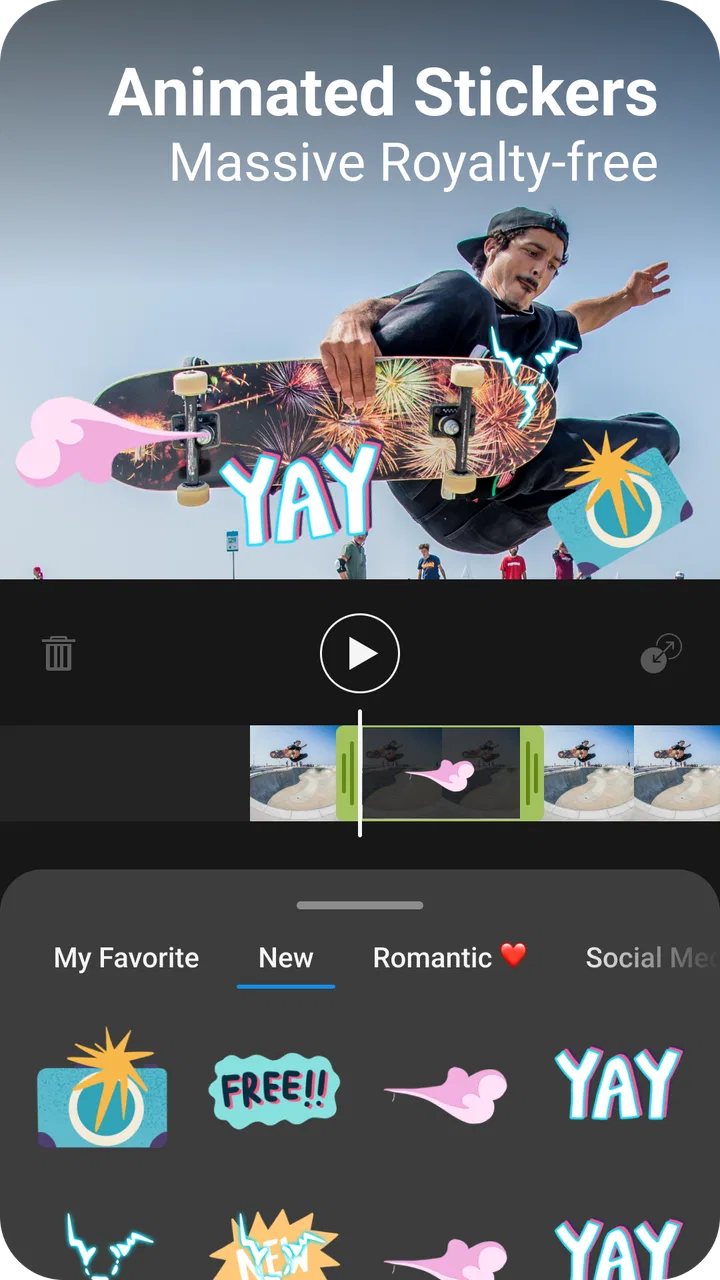
After installing ActionDirector, I would give myself a few minutes to identify the project creation area, media selection screen, timeline, preview window, and export control. You do not need to understand every icon immediately. The important thing is to recognize where imported clips appear and how the app distinguishes the media list from the sequence you are building.
For a first project, choose three to five clips that already belong together. A simple example would be an opening wide shot, a closer detail, a short action moment, and a final shot that provides closure. This arrangement teaches the central editing idea: the order of clips changes the meaning, even before you add visual effects or text.
When selecting media, resist the temptation to use every angle. More footage does not automatically create a better video. In my experience, beginners often leave in several seconds before and after the important action because they are afraid of cutting too much. A useful habit is to preview each clip and ask where the useful moment actually begins. Start there, then end shortly after the action has been understood.
The free price makes experimentation easy, but the app also includes in-app purchases ranging from $1.99 to $24.99 per item. I would explore the basic editing workflow before paying for anything. That lets you discover whether the timeline, preview behavior, and export process suit your phone and your patience. It also prevents spending money on extras before you know what kind of videos you actually make.
Your first meaningful result
For a reassuring first win, make a short “day in the park” video. Pick one clip showing the location, one showing the main activity, one close-up detail, and one ending shot. Place them in that order, trim the empty starts and finishes, and watch the sequence from beginning to end before changing anything else.
That first viewing is more valuable than immediately adding decoration. Notice whether the video starts too slowly, whether one cut feels abrupt, or whether the ending arrives without a clear stopping point. If the story feels confusing, rearrange or shorten the clips first. Visual effects cannot repair a sequence that lacks a sensible rhythm.
Once the structure works, make one change at a time. Try a simple transition only where the scene genuinely changes, rather than placing one between every clip. If you add text, keep it brief and position it where it does not hide the subject. If you use music or recorded sound, listen to the result with headphones as well as through the phone speaker. Background audio that seems acceptable on a small speaker can become distracting when played more clearly.
A particularly useful beginner technique is to create a version without any decorative additions, export or preview it, and then compare it with the enhanced version. This shows whether an effect improves the message or merely attracts attention to itself. I often prefer the cleaner cut. A video can feel polished because its timing is good, not because every transition is noticeable.
Everyday workflow: turning event clips into a message
Imagine you have recorded a child’s school performance or a friend’s birthday. The camera roll may contain long stretches of preparation, several similar viewpoints, and a few clips where people are talking before the important moment. In ActionDirector, I would first build a rough sequence using only the clearest highlights. Then I would watch it once without editing, note the slow sections, and return to shorten those areas.
The next decision is whether the video should preserve real sound. For a performance, applause and voices may be part of the memory, so reducing them too aggressively would remove the atmosphere. For a montage of unrelated moments, a music bed may create more unity. The trade-off is that added music can cover meaningful speech. When people are talking, I would prioritize intelligible original audio and use music more carefully.
For sharing with relatives, I would also keep the final piece shorter than the collection of source clips. Viewers usually appreciate a focused sequence more than a complete record of every moment. The editor is useful here because it helps transform a personal archive into a video with a beginning, middle, and end.
Confusion points that can slow beginners down
The timeline is the place where most early confusion happens. Imported media is not the same thing as media that has been placed into the final sequence. If a clip is visible in the project’s selection area but does not appear where you expect in the timeline, check whether it has actually been added and whether you are viewing the correct part of the sequence.
Another common mistake is trimming while the playhead is positioned imprecisely. I recommend previewing the exact moment several times before confirming a cut. Small timing changes matter: removing too much can make an action feel incomplete, while leaving too much can make the video seem slow. On a phone screen, it is easy to move quickly and then wonder why the finished result feels different from what you imagined.
Transitions can also mislead new users. A transition does not merely make two clips look attractive; it changes how the viewer experiences the passage of time. A clean cut often works better when the camera angle changes within the same moment. A softer transition may make sense when moving from one location or stage of the story to another. I would use fewer transitions than the app makes available.
Text requires similar restraint. A title at the beginning can establish context, while a short label can identify a place or moment. Long sentences are hard to read on a moving video, especially when the viewer is watching on a small display. Keep words on screen long enough to read, and check that the background does not make them disappear.
Export is another point where expectations matter. The project you edit is not automatically the same as the finished video in your gallery. Before sharing, watch the exported file from start to finish. Check the opening frame, the last seconds, the sound level, and whether any text is cut off. This final inspection is a small habit that prevents embarrassing mistakes.
How it compares with familiar alternatives
Compared with the editor built into a phone’s gallery, ActionDirector offers a more deliberate project-based approach. The gallery tool is excellent for a quick trim, rotation, or basic correction, but it is not always comfortable for shaping several clips into a sequence. ActionDirector is the better choice when the order, pacing, and relationship between clips matter.
Compared with social media editors, it feels less tied to a single destination. Social tools are convenient when you already know where the video will be posted and want platform-oriented stickers, sounds, or templates. ActionDirector makes more sense when you want to prepare a general video first and decide later whether to send it privately, save it, or publish it elsewhere.
Compared with a desktop editor, the advantage is convenience. You can work from the device that recorded the footage, which is useful when the project is personal and time-sensitive. The compromise is precision and workspace. A phone cannot provide the same screen area or editing comfort as a computer, and users handling long, complicated productions may find mobile controls tiring.
That middle position is important. I would recommend it to someone who has tried making videos with a phone but wants a clearer editing process. I would skip it in favor of a simpler tool if the only need is a single cut, and I would move to a desktop solution if the project requires extensive layers, detailed sound work, or a large amount of source material.
Practical habits that improve the result
One non-obvious improvement is to edit for sound before polishing the picture. Viewers forgive an ordinary-looking shot more easily than speech they cannot understand. Listen for sudden changes in volume between clips, especially when the footage was recorded in different places. A visually smooth sequence can still feel amateurish if every cut produces a noticeable audio jump.
A second is to use the first and last clips as anchors. The opening should tell the viewer where they are or what they are about to see. The ending should feel intentional rather than like the recording simply stopped. If you cannot find a strong final shot, shorten the sequence and end on the clearest available image instead of adding a weak extra clip.
A third is to keep an untouched project version before making major changes. If you experiment with timing, text, or sound and dislike the result, having the earlier arrangement makes recovery easier. This is especially helpful while learning, because exploration is productive only when mistakes do not force you to rebuild everything.
A fourth is to judge the video in the context where it will be watched. A clip intended for a phone message can tolerate different pacing from one shown to a room of people. Watch a draft while sitting back rather than staring at the editing controls. That distance often reveals whether the video is genuinely enjoyable or merely interesting to its creator.
Who should use it, and who should move on
I think ActionDirector is a good match for first-time editors who want a guided but genuine editing experience. It suits family videos, short travel recaps, school assignments, simple demonstrations, and personal clips that need more care than a quick social post. The free entry point also makes it reasonable to test the workflow before deciding whether additional purchases are worthwhile.
I would be more cautious if you dislike sorting files, making timing decisions, or reviewing a result more than once. The app can simplify editing, but it cannot choose the right story for you. People looking for an instant automatic montage may prefer a template-focused tool, while experienced creators who need extensive control may prefer a larger editor on a computer.
The broad Everyone rating is reassuring for general household use, but that does not mean every finished video is automatically appropriate to share. I would still review clips for private conversations, visible personal details, and accidental background footage before sending a project to other people. Good editing includes deciding what should remain private, not just making the sequence look better.
My recommendation after using the workflow
ActionDirector is most convincing when I use it to solve a specific problem: too many clips, no clear order, and a desire to make something worth watching. Its interface gives that problem a manageable shape. Start small, trim with purpose, protect important sound, and inspect the exported file. Those habits matter more than adding every available visual option.
Cyberlink Corp has positioned this app as a free video editor for a wide audience, and the combination of a 4.5 average and more than ten million installs shows why it attracts attention. I would not call it the perfect answer for every creator, but I would comfortably recommend it to a friend who wants to move beyond basic phone editing without committing to a complicated desktop program.
My practical advice is to make one short, complete video before exploring advanced options. If that first project feels clear and the editing pace suits you, ActionDirector can become a useful regular tool. If even a small sequence feels unnecessarily fiddly, a simpler gallery editor will probably serve you better. Either way, the app makes the decision easy: begin with the free version, judge the actual workflow on your own phone, and pay for extras only when you can name the specific problem they solve.
FAQs for ActionDirector - Video Editing
01What is ActionDirector - Video Editing used for?
ActionDirector - Video Editing is designed for creating and polishing videos directly on a mobile device. It includes tools for trimming and joining clips, adjusting speed, adding music, applying transitions and filters, inserting titles, and making basic color or audio corrections. It is particularly suitable for action footage, travel videos, social media posts, and quick edits that do not require a desktop computer.
02Is ActionDirector suitable for beginners?
Yes, the app is generally approachable for beginners because its editing workflow is based on importing media, placing clips on a timeline, and selecting tools from clearly labeled menus. New users can start with simple cuts, music, text, and filters before exploring more advanced controls. However, learning features such as speed changes, layered effects, and detailed adjustments may take some practice.
03Does ActionDirector support high-quality video exports?
ActionDirector can be used to export edited projects in several quality settings, but the exact available resolution, frame rate, and format may depend on the device, source footage, app version, and account or subscription status. High-resolution projects also require more storage, processing power, and time. Before editing an important project, it is worth checking the export screen to confirm the options available on your phone.
04Is ActionDirector free to download and use?
The app may be available to download without an upfront charge, but some features, effects, templates, export options, or other tools can be restricted behind in-app purchases or a subscription. The free experience may also include limitations such as advertisements or branded output, depending on the current version. Review the store listing and purchase terms carefully before starting a trial or confirming payment.
05What phones and permissions does ActionDirector require?
ActionDirector needs access to your device’s media library or storage so it can import video clips, photos, and music for editing and save completed projects or exports. Some versions may request microphone access for recording or voice-over features. Compatibility and performance vary by operating system, processor, memory, and available storage, so older devices may experience slower previews, longer exports, or occasional limitations with high-resolution footage.
Pros
- Intuitive timeline makes trimming and arranging clips easy for beginners.
- Supports 4K video editing and export on compatible devices.
- Offers useful action effects
- slow motion
- and speed controls.
- Includes tools for stabilizing shaky footage and improving clarity.
- Works well for creating videos formatted for social media platforms.
Cons
- Many advanced effects and content packs require a paid subscription.
- High-resolution projects can use considerable storage and battery power.
- Export speed may slow noticeably on older phones and tablets.
- Some features depend on device hardware and supported video formats.
- The interface can feel crowded when working with several editing layers.

ActionDirector - Video Editing
Gallery